Next.js Hydration Error: Every Cause and the Exact Fix
A Next.js hydration error means the HTML from the server and the first client render differ. Find which of the five causes you have and apply the matching fix, with working code.

On this page
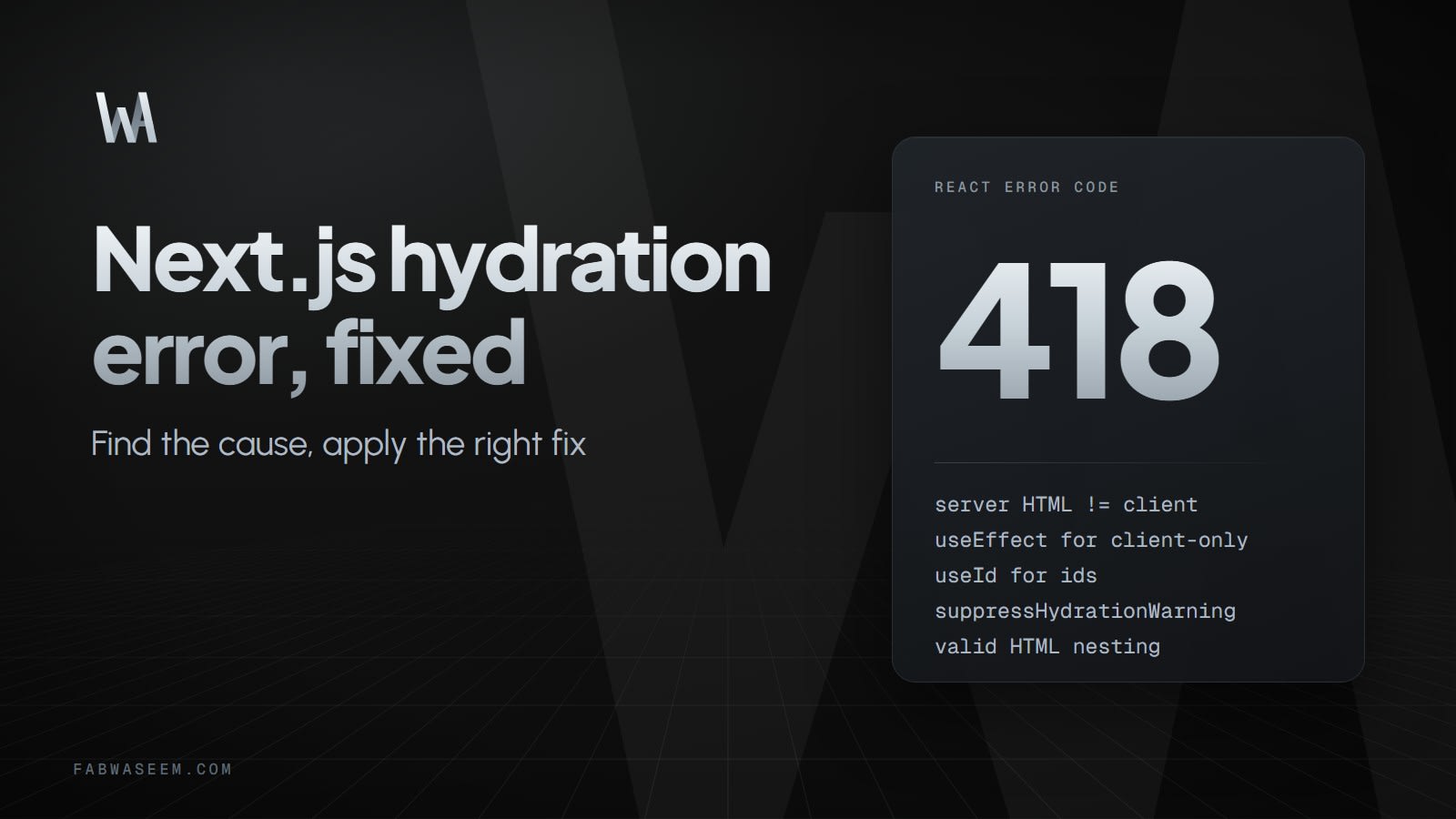
A Next.js hydration error means the HTML your server sent and the first render React ran in the browser were not identical. React compares the two while it hydrates the page, and when they differ it logs a message such as Hydration failed because the server rendered HTML didn't match the client and regenerates the tree on the client. The fix is always the same idea: make the first client render produce exactly what the server produced, then show anything browser-specific afterwards.
This guide is written against Next.js 16.4 and React 19.3. It covers the exact messages, a fast way to find the cause, and one fix for each of the five causes that account for nearly every report.
What does a Next.js hydration error actually mean?#
Hydration is the step where React attaches event handlers to server-rendered HTML. According to the Next.js docs, the error appears when the React tree prerendered on the server differs from the tree rendered during the first render in the browser. Nothing is "broken" at the network level; your component simply returned different output in two environments.
These are the messages you will see, shortened from React's own error table:
Hydration failed because the server rendered HTML didn't match the client.
As a result this tree will be regenerated on the client.

Text content does not match server-rendered HTML.

There was an error while hydrating but React was able to recover by
instead client rendering the entire root.
In production builds React shows these as numeric codes: 418 for the first, 425 for the second and 423 for the third. A fourth code, 419, reads "The server could not finish this Suspense boundary, likely due to an error during server rendering." That one is a server-side rendering failure, not a mismatch, so look at your server logs for the underlying exception instead of comparing markup.
How do you find which component causes it?#
Compare View Source with the Elements panel, then bisect. View Source shows the HTML the server sent. The Elements panel shows the DOM after React ran. Any difference between the two for the same node is your mismatch, and the first differing node usually names the component.
A short checklist that finds the cause in minutes:
- Reproduce with
next build && next start, because some mismatches only appear in production builds. - Open the page in a private window with extensions disabled. If the error disappears, an extension is modifying the HTML.
- Remove suspicious components one at a time, starting with anything that formats dates, reads storage, or generates ids.
- Validate the markup: a
<div>inside a<p>is invalid, and the browser will repair it before React sees it.
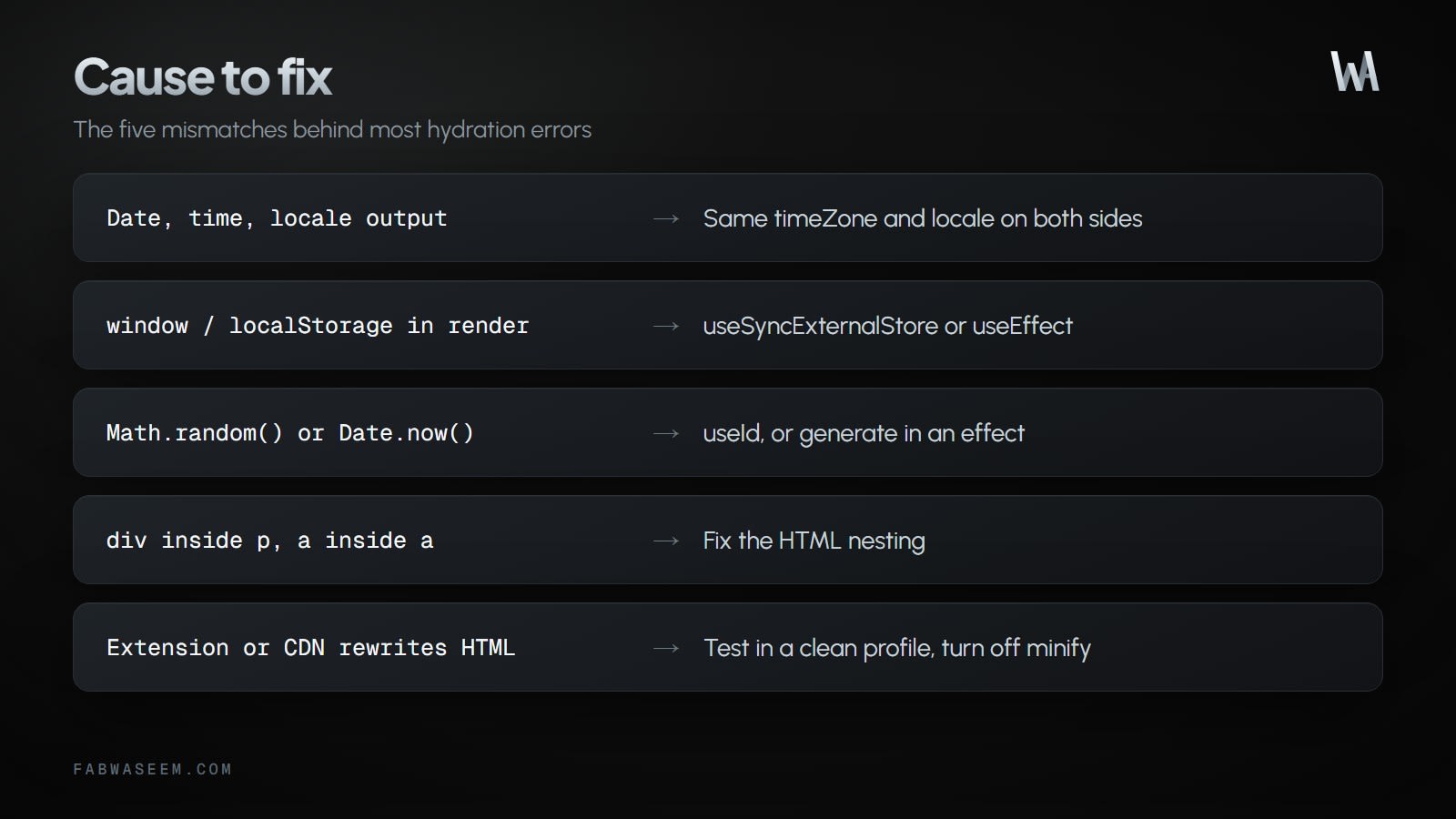
The table below maps what you find to the section that fixes it.
Why do dates and times cause hydration errors?#
Because the server and the browser often run in different time zones and locales. new Date().toLocaleDateString() on a UTC server and in a visitor's browser returns different strings, and so does any "time ago" label based on the current moment. The fix is to pin the time zone and locale so both sides compute the same output.
// components/post-date.tsx
export function PostDate({ iso }: { iso: string }) {
  const text = new Intl.DateTimeFormat("en-US", {
    dateStyle: "medium",
    timeZone: "UTC",
  }).format(new Date(iso))

  return <time dateTime={iso}>{text}</time>
}
If you really want the visitor's local time, render the pinned UTC text first and swap it in an effect (see the two-pass pattern below). Relative labels like "5 minutes ago" belong in an effect too, since the server render and the browser render happen at different moments.
How do you use window or localStorage without a mismatch?#
Do not read them during render. typeof window !== 'undefined' checks in rendering logic are listed by the Next.js docs as a direct cause, because the server takes one branch and the browser takes the other. Use useSyncExternalStore for values that live outside React, which lets you declare a separate server snapshot.
"use client"
import { useSyncExternalStore } from "react"

function subscribe(onChange: () => void) {
  window.addEventListener("storage", onChange)
  return () => window.removeEventListener("storage", onChange)
}

export function useStoredTheme() {
  return useSyncExternalStore(
    subscribe,
    () => localStorage.getItem("theme") ?? "light", // client snapshot
    () => "light" // server snapshot, used for SSR and hydration
  )
}
React renders the server snapshot while hydrating, then re-renders with the client snapshot, so the first pass matches and the stored value appears right after. The useSyncExternalStore reference documents the getServerSnapshot argument. Note that the storage event only fires for changes made in other tabs, so when the same tab writes the value, also dispatch your own event and listen for it in subscribe.
What is the two-pass render pattern?#
It is the simplest general fix: render the server-safe value on the first pass, then switch to the client value in an effect. React's hydrateRoot docs describe it as the way to intentionally render different content on the client.
"use client"
import { useEffect, useState } from "react"

export function ClientOnlyGreeting() {
  const [isClient, setIsClient] = useState(false)
  useEffect(() => setIsClient(true), [])

  return <p>{isClient ? `Your timezone: ${Intl.DateTimeFormat().resolvedOptions().timeZone}` : "Loading…"}</p>
}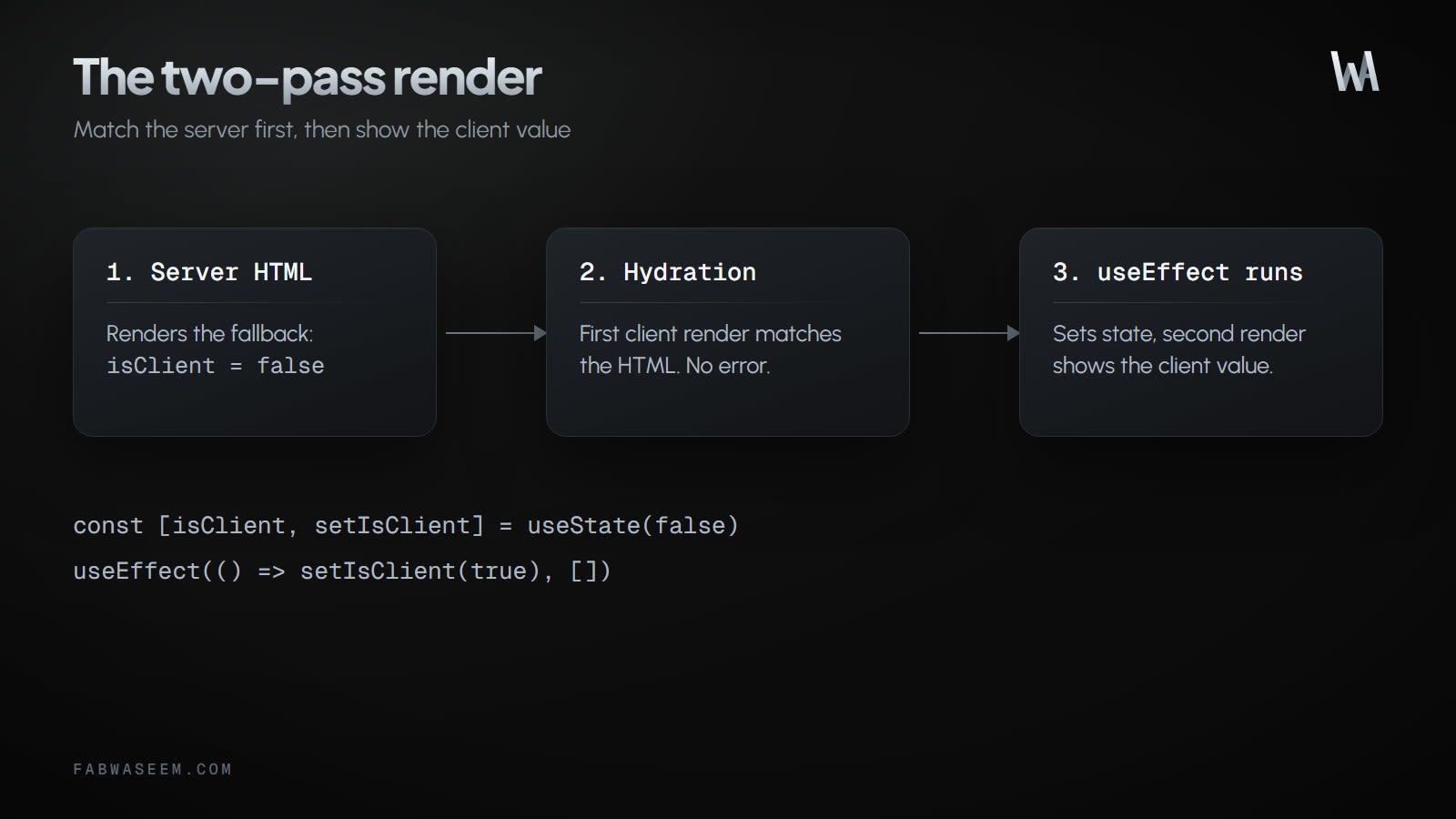
The trade-off, which React's docs call out, is that components render twice and the content changes right after hydration. Keep the fallback the same size as the final content to avoid layout shift.
How do you fix random ids and Date.now() in render?#
Replace them with useId, or generate them in an effect. Math.random() and Date.now() return a new value on every call, so the server and client can never agree. A common real-world trigger is a generated SVG gradient or form field id that differs between renders.
import { useId } from "react"

export function Field({ label }: { label: string }) {
  const id = useId()
  return (
    <>
      <label htmlFor={id}>{label}</label>
      <input id={id} />
    </>
  )
}
useId produces a stable id that matches between server and client, as the React reference explains. For random values that only matter after load, such as an A/B bucket, set them in useEffect.
Can invalid HTML nesting cause hydration errors?#
Yes, and it is the cause people check last. The Next.js docs list <p> inside <p>, <div> inside <p>, lists inside <p>, and interactive elements nested in each other (<a> in <a>, <button> in <button>). The browser silently rewrites invalid markup while parsing, so the DOM React sees no longer matches what the server rendered.
Invalid: the browser closes the <p> before the <div>.
<p>
  Read more <div className="badge">New</div>
</p>
Valid:
<div>
  Read more <span className="badge">New</span>
</div>
Markdown renderers are a frequent source: a component mapped to p that wraps an image or a block-level component produces exactly this pattern.
What if a browser extension or CDN changes the HTML?#
Extensions and CDNs can rewrite the HTML before React hydrates it, so the mismatch is not in your code. Test in a private window with extensions off, then disable HTML rewriting at the CDN. The Next.js docs list browser extensions that modify the HTML and CDN features that rewrite the response, naming Cloudflare Auto Minify as an example, so check any HTML minifier or rewriter your edge applies. They also list incorrectly configured CSS-in-JS libraries, so follow the official examples for your styling library.
On iOS, Safari can detect phone numbers, emails and addresses in text and convert them into links, which also causes mismatches. The documented fix is this tag in your head:
<meta name="format-detection" content="telephone=no, date=no, email=no, address=no" />If you self-host behind a proxy, see the self-hosting Next.js guide for the deployment setup this usually involves.
When is suppressHydrationWarning the right fix?#
When one element's text or attribute must differ between server and client, such as a timestamp, and you accept that. The Next.js and React docs both describe it as an escape hatch that works one level deep, and note that React will not try to patch mismatched text content.
<time dateTime={iso} suppressHydrationWarning>
  {new Date(iso).toLocaleString()}
</time>
Do not put it on a wrapper to hide a real mismatch. The tree below that element is still compared normally, and the underlying bug stays. Theme libraries that set a class on <html> before React loads are the typical legitimate use, applied to that single element.
When should you use next/dynamic with ssr: false?#
Only for a component that cannot render on the server at all, such as a chart library that needs the DOM. ssr: false removes the component from the server HTML and loads it in the browser, so there is nothing to mismatch. It also means the area is empty until JavaScript arrives.
"use client"
import dynamic from "next/dynamic"

const Chart = dynamic(() => import("./chart"), {
  ssr: false,
  loading: () => <div style={{ height: 320 }} />,
})

export function ChartSection() {
  return <Chart />
}
In the App Router, the Next.js lazy loading guide notes that the ssr: false option only works for Client Components, so wrap it in a file marked "use client" as above. Prefer the other fixes first, since they keep the content in the initial HTML for users and crawlers.
How do you prevent hydration errors in new code?#
Treat the first render as a pure function of props and state. Keeping render pure also satisfies the rules the React Compiler in Next.js assumes. Fetch data on the server and pass it down rather than recomputing it on the client, which pairs well with the patterns in server actions vs route handlers. If you cache rendered output, remember cached markup is frozen at one moment; see the use cache guide before putting time-dependent text inside it.
If hydration problems are blocking a launch and you would rather hand them off, the Next.js development service covers this kind of debugging.
Key takeaways#
- A hydration error means the server HTML and the first client render differ, reported as React errors 418, 423 and 425.
- Find it by comparing View Source with the Elements panel, and reproduce with
next build && next start. - Pin the time zone and locale for dates, use
useSyncExternalStorefor browser state, anduseIdfor ids. - Use the two-pass
useEffectpattern when the client value must differ. - Check HTML nesting, extensions and CDN rewriting before blaming your code.
- Reserve
suppressHydrationWarningandssr: falsefor the narrow cases they were designed for. - Error 419 is a server rendering failure, so read the server logs.
Questions
Share this guide


Comments
No comments yet. Questions, corrections and your own results are all welcome.
Be kind and stay on topic. No name needed: leave it blank and you post under an anonymous name that stays yours. Links get
nofollow; spam is removed. Your email is never shown and is only used for reply notifications you ask for. Privacy